To reproduce a V8 vulnerability with a debug build, you need to build the source yourself. This post summarizes the procedure for building the V8 engine on Windows and Linux respectively.
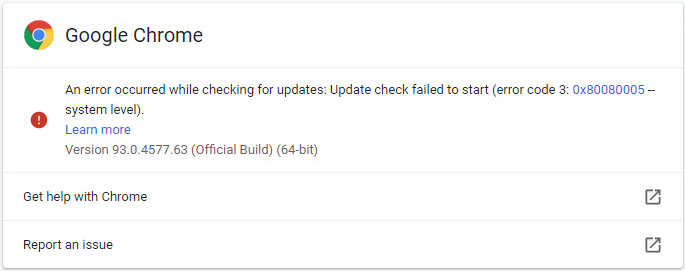
Disabling Chrome Updates
Disable the Chrome update service
msconfig.msc -> uncheck the gupdate and gupdatem options
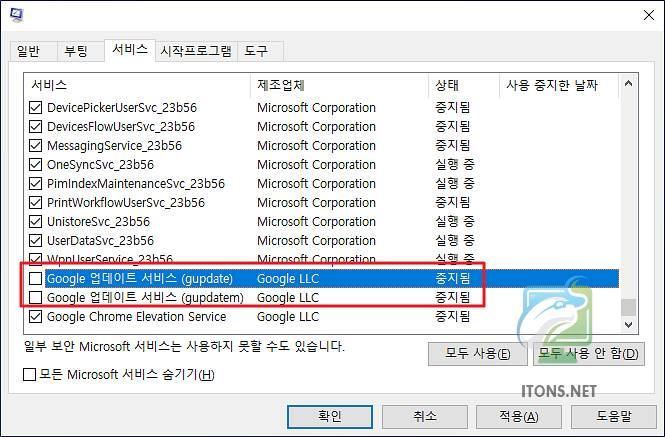
Disable Chrome's Windows Task Scheduler entries
taskscshd.msc -> disable both GoogleUpdateTaskMachineCore and GoogleUpdateTaskMachineUA
Rename the Chrome update file
Rename GoogleUpdate under C:\Program Files (x86)\Google\Update to GoogleUpdate.bak
Windows
Prerequisites
- Visual Studio 2019 16.0.0 or later
- Windows 10 SDK 10.10.17763 or later
- depot_tools
Installing Visual Studio
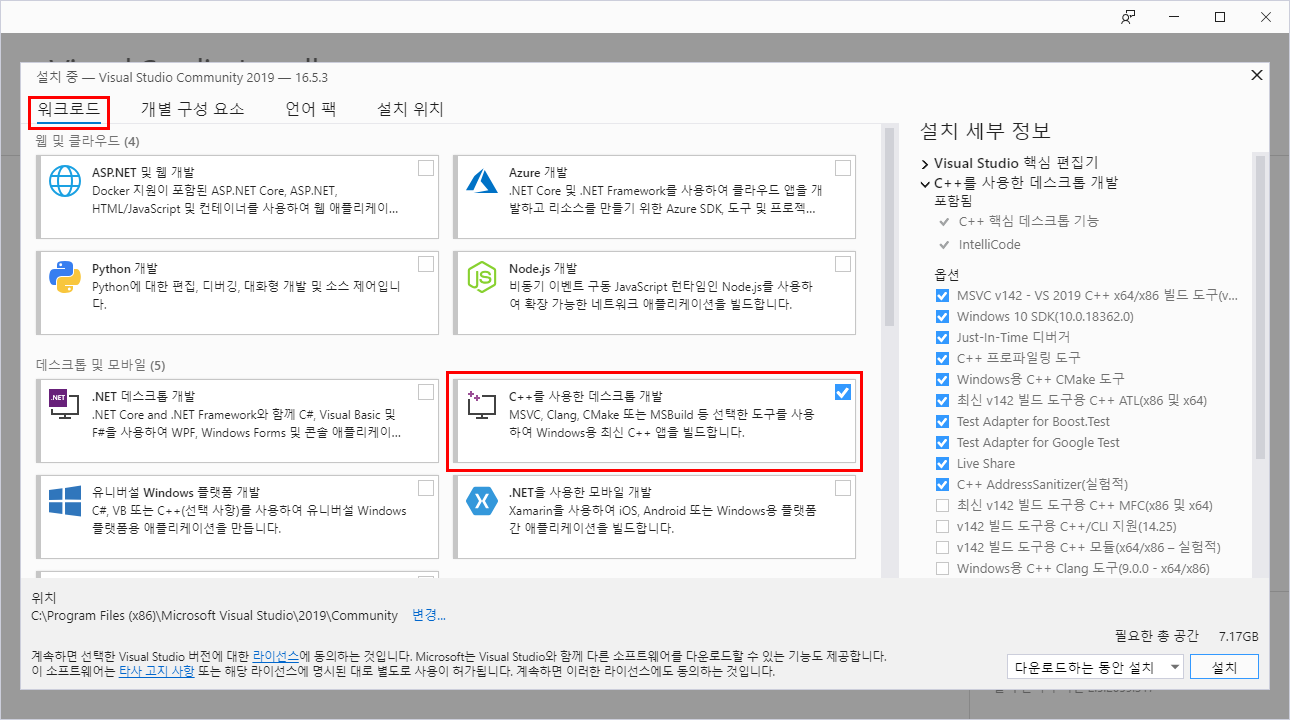
After installation, go to Control Panel -> Add/Remove Programs
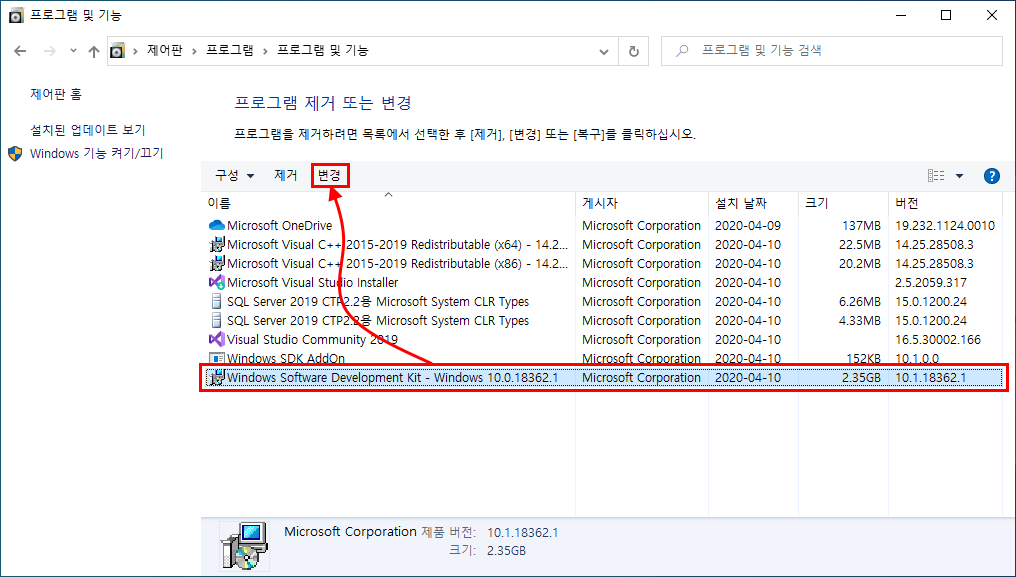
Select Change on Windows Software Development Kit
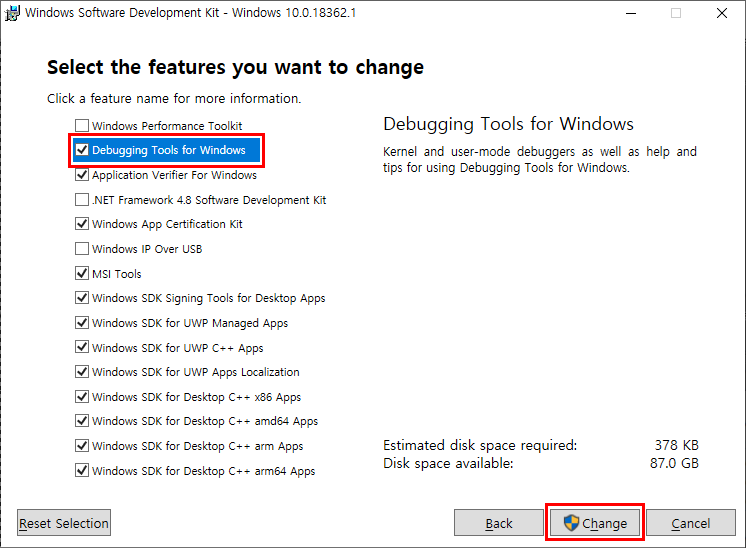
Check Windows Debugging Tool and apply the change
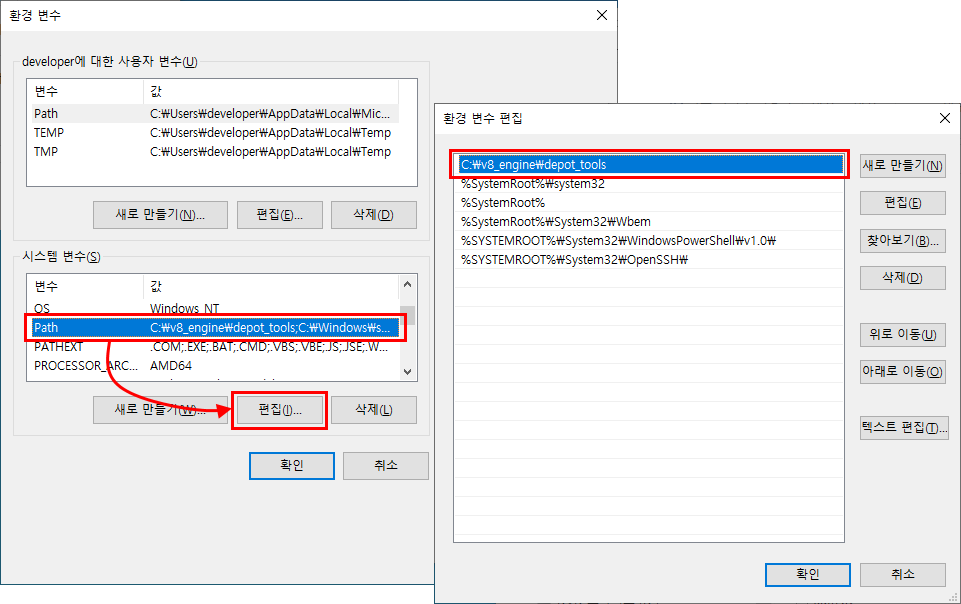
Depot_tools
https://storage.googleapis.com/chrome-infra/depot_tools.zip
Download this file and extract it to the following path
C:\v8_engine\depot_tools
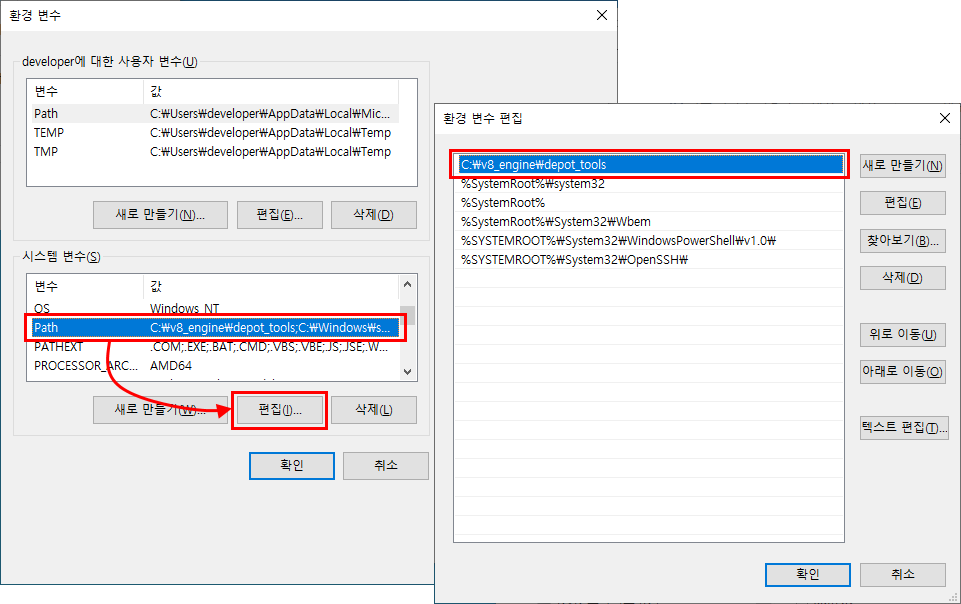
Then set up the environment variable in Path
Also set up additional environment variables
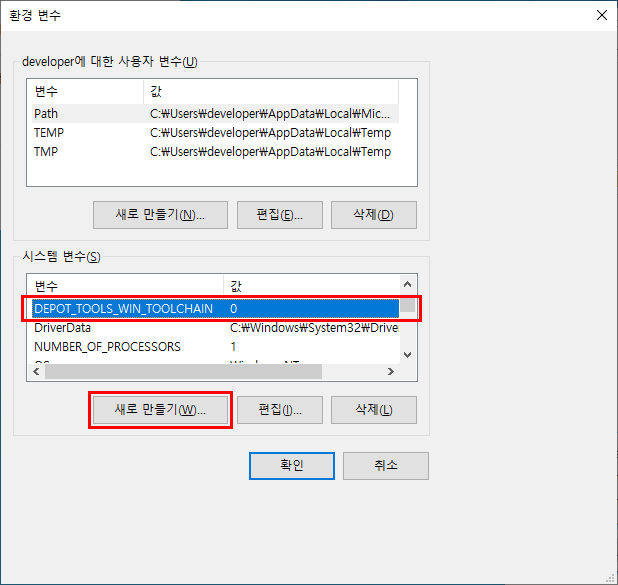
DEPOT_TOOLS_WIN_TOOLCHAIN = 0
GYP_MSVS_VERSION=2019
Run the following command
C:\v8_engine\depot_tools>gclient
If it succeeds, the following window appears.
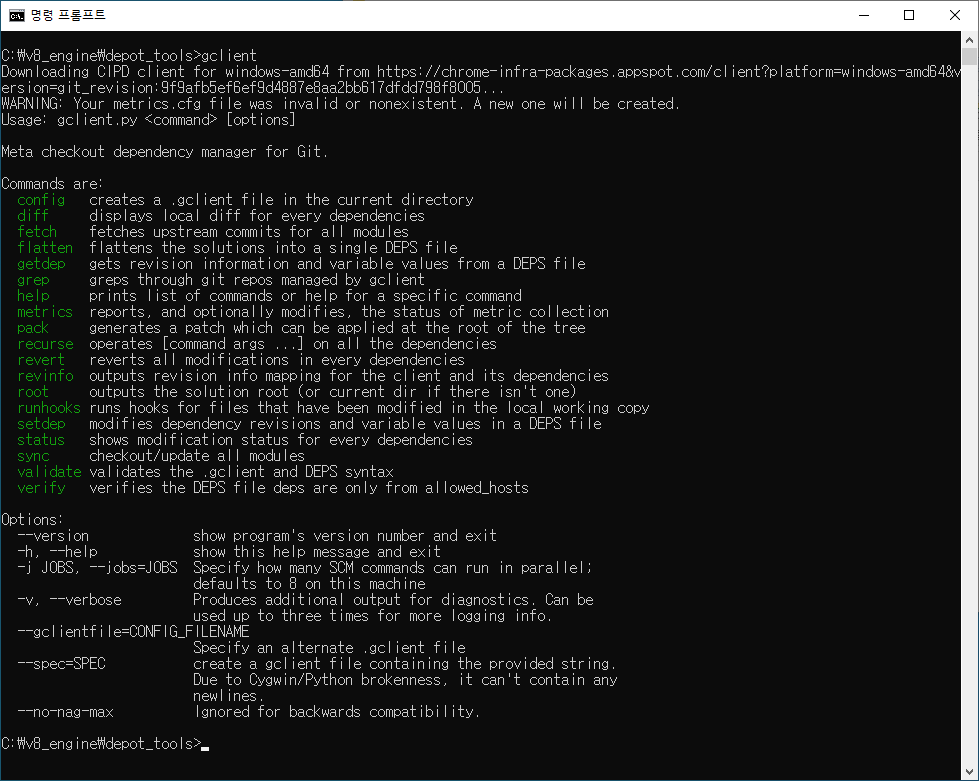
Then run the command below and check that python.bat appears at the very top of the list
C:\v8_engine\depot_tools>where python
Even if you have another Python installed, that file must be at the top

Basic git configuration
git config --global user.name "[user name]"
git config --global user.email "[email address]"
git config --global core.autocrlf false
git config --global core.filemode false
git config --global branch.autosetuprebase always
Create a folder to receive the v8 engine source and move into it
C:\v8_engine\depot_tools
            \source
Run the following command to download the source
C:\v8_engine\source>fetch v8
... omitted ...

Downloading https://commondatastorage.googleapis.com/chromium-browser-clang/Win/clang-n345635-5d881dd8-1.tgz .......... Done.
Copying C:\Program Files (x86)/Microsoft Visual Studio/2019/Community\DIA SDK\bin\amd64\msdia140.dll to C:\v8_engine\source\v8\third_party\llvm-build\Release+Asserts\bin
Traceback (most recent call last):
  File "v8/tools/clang/scripts/update.py", line 383, in <module>
    sys.exit(main())
  File "v8/tools/clang/scripts/update.py", line 379, in main
    return UpdatePackage(args.package)
  File "v8/tools/clang/scripts/update.py", line 313, in UpdatePackage
    CopyDiaDllTo(os.path.join(LLVM_BUILD_DIR, 'bin'))
  File "v8/tools/clang/scripts/update.py", line 248, in CopyDiaDllTo
    CopyFile(dia_dll, target_dir)
  File "v8/tools/clang/scripts/update.py", line 242, in CopyFile
    shutil.copy(src, dst)
  File "C:\v8_engine\depot_tools\bootstrap-3_8_0_chromium_8_bin\python\bin\Lib\shutil.py", line 139, in copy
    copyfile(src, dst)
  File "C:\v8_engine\depot_tools\bootstrap-3_8_0_chromium_8_bin\python\bin\Lib\shutil.py", line 96, in copyfile
    with open(src, 'rb') as fsrc:
IOError: [Errno 2] No such file or directory: 'C:\\Program Files (x86)/Microsoft Visual Studio/2019/Community\\DIA SDK\\bin\\amd64\\msdia140.dll'
Error: Command 'vpython.bat v8/tools/clang/scripts/update.py' returned non-zero exit status 1 in C:\v8_engine\source
Hook 'vpython.bat v8/tools/clang/scripts/update.py' took 117.71 secs
Subprocess failed with return code 2.
If this error occurs, you need to delete the source entirely and start over.
When it downloads successfully, you'll see a screen like this.
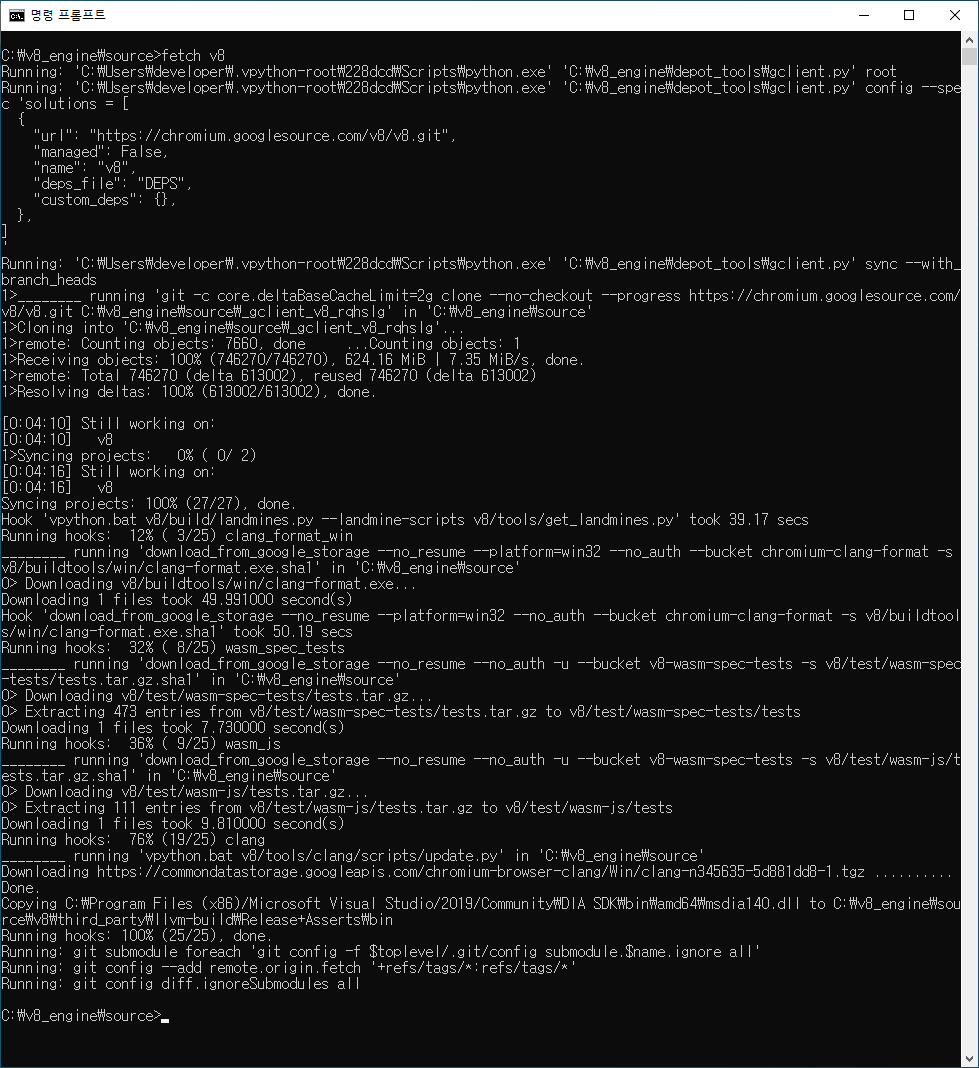
If you plan to check out via git before this step, do it here. Do the git checkout here, then run gclient sync.
git checkout 61ed621235324534.....
gclient sync
Move into the v8 directory and run the following command. Choose either release or debug.
C:\v8_engine\source\v8>gn gen --ide=vs out\x64."release|debug" --args="is_debug=false is_component_build=true"
By default, a debug build is enabled, and running something like 'gn gen out.gn\x64.release –args="is_debug=false"' produces a release build. (out.gn\x64.Debug is just a path designation and has no effect on the debug/release or x86/x64 target.)
(Adding the is_component_build=true option as above builds it as a dynamic library. However, only v8.dll is generated as a dynamic library.)
If it runs successfully, you'll see the following screen.

Now running 'ninja – C out.gn/x64.release' starts the build.
ninja -C out.gn/x64.release
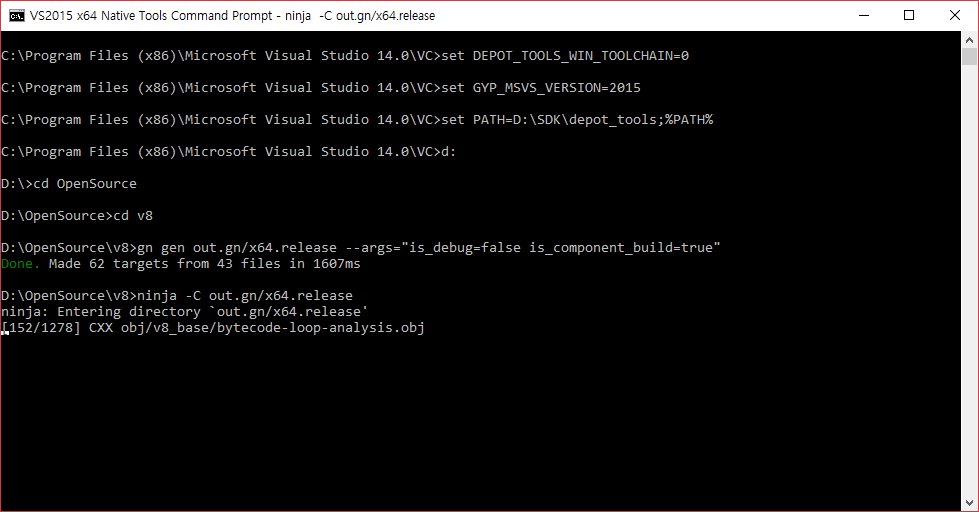
Once the build is complete, in the v8/out.gn/x64.release folder, use the files whose names start with icu, along with v8.dll and v8.dll.lib, and the obj files inside the folders under the obj directory that start with v8_ when linking.
Linux
Build
git clone https://chromium.googlesource.com/chromium/tools/depot_tools.git
export PATH=`pwd`/depot_tools:"$PATH"
fetch v8
cd v8
git checkout c895a23
gclient sync
build/install-build-deps.sh # only Linux

tools/dev/gm.py x64.debug

OR

tools/dev/v8gen.py x64.debug -- v8_enable_slow_dchecks=false v8_enable_backtrace=true v8_enable_object_print=true #generate build option template
ninja -C out.gn/x64.debug #build
Reference
Build-related links
https://www.lainyzine.com/ko/article/how-to-disable-windows-automatic-updates-on-windows-10/
https://googleprojectzero.github.io/0days-in-the-wild//0day-RCAs/2021/CVE-2021-30632.html